
Branding
An album that looks like your event
Choose the look, the cover, the color and the words your guests see, on every plan, from your album’s Guest page. Then print table cards to match.
Free is for trying Gradentic: a test album that starts within 24 hours, with up to 100 photos and videos, online for 14 days. No payment needed.
What you can make your own
Two looks for the whole page
Gradentic, soft paper with the album’s name in a classic serif, or Snapshot, playful, with the cover taped on like an instant photo and the album a scatter of prints.
Your color on every button
Pick one of nine colors or your own. Gradentic checks that guests can read the buttons on it before you save.
Printed cards in your style
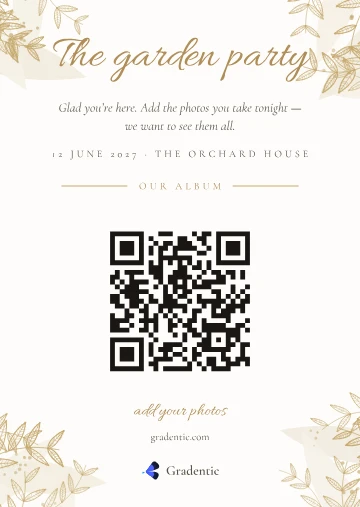
Table cards, folded cards, handouts, a poster or the code alone, on A6, A5 or A4, in the Botanical, Linen or Ribbon design, with your colors and your words. Download a PDF, an SVG or a picture, and leave Gradentic’s small logo off the card if you prefer.
All the details
A cover photo, or none
Upload a photo or pick one your guests have already added. Without one, the cover draws your occasion’s motif, such as two rings for a wedding, with your initials.
The name and a welcome line
The album’s name and a welcome message of up to 280 characters sit on the cover, above the photos.
How the album first opens
Grid, feed or full screen. Each guest can switch on their own phone.
An address of your own
Every album has its own address from the start. On Complete and Business you can choose one, such as album.gradentic.com/garden-party.
For a business: your brand on every client’s album
With Gradentic Business, your logo or name replaces Gradentic’s at the top of each album, your color carries to every album, a contact button for your website, phone or email sits under the photos, and the album shows no “Powered by Gradentic”.
What stays ours
You can’t upload your own style sheet, fonts or theme, and albums on a domain of your own aren’t available yet.
How to brand an album
- 1
Open the album’s Guest page
Its tabs are Look, Cover, Color, Text and Options, and your guests’ page changes beside them as you work.
- 2
Save, and your guests see it
Your changes reach guests when you press Save. An uploaded cover photo goes out as soon as it’s ready.
- 3
Print your cards
Under QR code › Print, choose what to print and its design, then download it for a print shop or your own printer.
- 4
Choose your address
On Complete or Business, choose your album’s own address in its settings. Cards printed with the album’s first address keep working.
- 5
A business sets its brand once
Under Logo & colors a business adds its logo and color, and under Contact button it sets up the button guests see. Every client album picks them up.
Want to try it on your own event?
Create a free album and try every look, color and cover before your guests see it, or tell us about the albums you make for clients.
Free is for trying Gradentic: a test album that starts within 24 hours, with up to 100 photos and videos, online for 14 days. No payment needed.
Explore the business options